


You might be at the point where the idea feels simple, but the next click feels loaded. You know you want a blog, you know WordPress is probably involved, and now you're staring at choices like hosting, themes, plugins, and whether this should be a hobby site or something that can help your business grow. That's the moment where a lot of first-time bloggers stall.
The good news is that how to open a blog on WordPress doesn't have to be confusing if you treat it like a sequence instead of a leap. WordPress has become the standard starting point for a reason, and the setup path is more predictable than most beginners expect. If you make the right decisions early, you can launch with a blog that's ready to publish, capture leads, and support future automation instead of becoming a static page collection.
Table of Contents
- Why WordPress Is the Default Starting Point
- Choosing Between WordPress.com and WordPress.org
- Picking a Domain and Hosting Provider
- Installing WordPress and Getting Around the Dashboard
- Picking a Theme and the Plugins You Actually Need
- Essential Settings, Pages, and Your First Post
- SEO, Speed, and Security Habits That Pay Off Later
Why WordPress Is the Default Starting Point
The most common stuck point is the one between wanting a blog and choosing the platform that will hold it. That choice matters because it decides how much control you get, how much setup you'll do yourself, and whether you can grow the site into a real asset later.
WordPress sits at the center of that decision because it powers 41.5% of all websites and 59.2% of sites with a known CMS in a widely cited July 2026 tracker, while another industry roundup places it at 43.5% of all websites. Those estimates vary by method, but they point in the same direction, WordPress is still the default starting point for a huge share of publishers and businesses. That scale matters because it gives you a mature ecosystem, familiar setup flows, and lots of room to grow without rebuilding everything later. WordPress market share guide
Practical rule: if you want a blog that can start small and grow into a lead-generating site, WordPress is usually the safest place to begin.
There are two versions you'll hear about right away, WordPress.com and WordPress.org. One is hosted for you, the other is self-hosted. That fork in the road determines how much technical work you'll do, how many tools you can add, and how much ownership you want over the structure of the site.
A typical launch follows a short sequence, choose a host and domain, install WordPress, pick a theme, write the first post, add plugins, then promote and monitor the blog. If you're using the hosted path, WordPress.com's own setup flow starts from the dashboard and moves through content creation with Posts > Add New Post, then measurement through built-in Stats. The whole process can move from install to publish without custom development, which is exactly why beginners and small teams keep landing here. You can also see why agencies move beyond a basic site stack when they need a broader operating system, which is part of why agencies switch to HighLevel.
Choosing Between WordPress.com and WordPress.org
This is the real branch point, and it's easier to choose once you separate convenience from control. WordPress.com gives you a managed environment, while WordPress.org points you toward a self-hosted installation on a provider you choose.
Here's the simplest way to think about it. If you want a low-maintenance personal blog and don't mind a more guided setup, WordPress.com fits that job. If you want a blog that can become a business asset, accept custom tools, and support more advanced monetization later, self-hosted WordPress.org is usually the better long-term fit.
| Dimension | WordPress.com | WordPress.org |
|---|---|---|
| Setup effort | Guided and managed | More hands-on |
| Control | Limited by plan and platform rules | High control over site structure |
| Plugins and customization | More restricted | Broad plugin and theme freedom |
| Monetization and e-commerce | More dependent on plan | Easier to shape around your goals |
| Ownership and portability | More platform-dependent | More flexible if you want to move or expand |
A useful outside perspective is the Legacy Builder CMS insight, which frames CMS choice as a decision about workflow, flexibility, and future change, not just the first setup screen. That's exactly the right lens for a beginner who doesn't want to rebuild six months later.
If your goal is simple publishing, WordPress.com keeps the early work light. If your goal includes lead capture, automation, custom forms, or later integrations, self-hosted WordPress.org gives you more room to shape the site around the business.
A lot of readers also want to know whether they should pair the site with broader marketing systems early. That's where agency marketing automation insights become relevant, because blog traffic only becomes useful when the site can respond to it after the visit.
For a first blog, I'd make the decision like this. Choose WordPress.com if you want simplicity first. Choose WordPress.org if you want the blog to act like infrastructure, not just a publishing page.
Picking a Domain and Hosting Provider
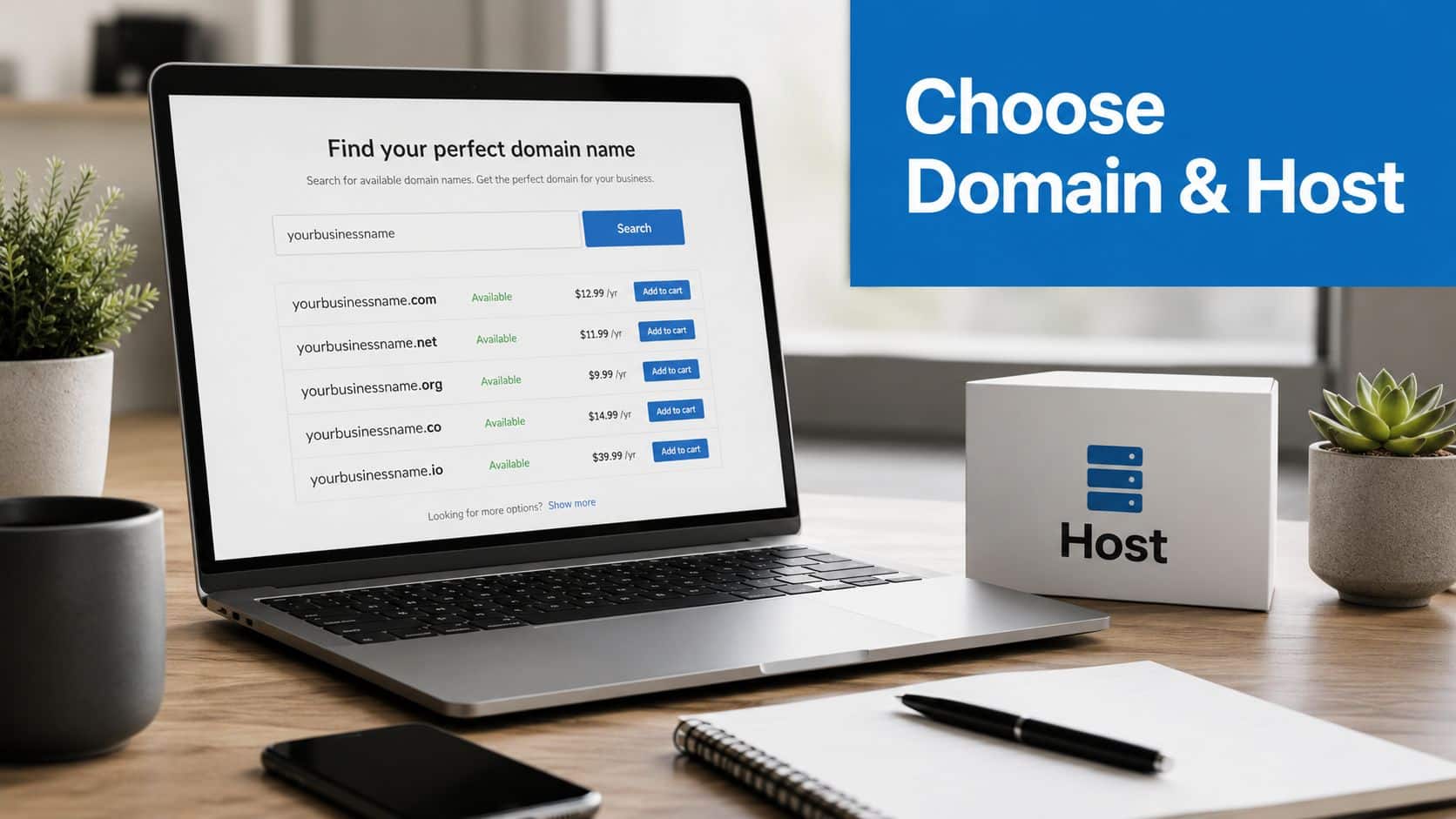
A good domain name does three things at once, it's short, easy to say out loud, and easy to remember after one glance. If you have to explain the spelling every time, you'll make sharing harder than it needs to be.
Hosting is the service that keeps your blog online. In plain language, it's the place your WordPress site lives, and the quality of that home affects support, speed, and how painful setup feels when something needs attention.
What to look for before you buy
A beginner doesn't need a giant feature list. You need a provider that makes the WordPress installation simple, offers help when the dashboard looks unfamiliar, and doesn't bury the renewal cost behind a flashy first-year deal.
- Domain simplicity: Pick something brandable, readable, and easy to type without punctuation tricks.
- WordPress auto-install: Look for a control panel that can install WordPress without manual file handling.
- Support quality: Search for clear help docs and responsive support before you pay.
- Price-to-feature ratio: Compare what's included now, then check what renews later.
That last point matters because the first-year price and the renewal price are often not the same thing. A free domain with hosting can be helpful, but only if you understand what you'll owe later.
For readers comparing hosting styles, Monro Cloud's hosting guide is a useful way to study how managed WordPress hosting is usually presented and what support features tend to sit at the center of the decision.
Check the control panel before checkout. If you can't find the WordPress installer, the file manager, the domain area, or the backup tools without guessing, the host may be more frustrating than helpful.
A clean early purchase gives you less to fix later. Once the domain and host are in place, the rest of the launch becomes a straightforward setup sequence instead of a scavenger hunt.
Installing WordPress and Getting Around the Dashboard
Most hosts give you two ways to get WordPress live, a one-click installer or a manual install. For a first blog, the one-click route is usually enough, because it puts you into the dashboard fast and avoids file-level mistakes you don't need to learn on day one.
Once you're in, the dashboard looks busier than it is. The main menu holds the core tasks, Posts for articles, Pages for fixed content, Appearance for the look of the site, Plugins for added features, Settings for the site's behavior, and Users for account access.
The parts people confuse most
Posts are time-based articles, the things you'll publish regularly. Pages are the stable parts of the site, like About and Contact. That distinction matters because beginners often put everything into posts and then wonder why the blog feels messy.
The block editor is the other big shift. Instead of one giant text box, you build content with blocks for paragraphs, headings, images, buttons, and embeds. That's why a first post usually feels easier than people expect, you click Posts > Add New, add a title, write the body, preview it, and publish.
A WordPress setup only feels hard when the basics stay unnamed. Once you know where those menu items live, every future task becomes easier to locate and repeat.
Later in the section above, you'll notice that setup work doesn't have to stay tied to the desktop. If you want a quick visual walkthrough of the moving pieces, the embedded video below can help while you keep the dashboard open.
WordPress.com's setup guidance and dashboard conventions line up with this workflow, start from the main area, create content, then use the site tools to monitor what happens after launch. That's why a beginner can move from installation to publishing without needing a developer in the room.
Picking a Theme and the Plugins You Actually Need
A theme sets the visual frame of the blog, but it should not become a design project that delays publishing. Pick one clean starter theme, preview it, and move on.
There are two broad theme styles to know about, classic themes and block themes. Classic themes are more traditional in layout and settings, while block themes let you customize more of the site with the block editor. You don't need to master both right away, you just need one that looks good on mobile and doesn't fight your content.
A lean starter stack
The plugin trap is real. New bloggers often install everything they've heard about, then slow the site down before anyone has read a sentence.
A smarter first stack is small and deliberate.
- SEO plugin: Use one plugin to handle titles, descriptions, and basic search settings.
- Caching plugin: Add one cache tool so pages load more smoothly.
- Contact form plugin: Give visitors a simple way to reach you.
- Security plugin: Add baseline protection, not a pile of overlapping tools.
A small stack is easier to troubleshoot, easier to update, and easier to explain to yourself three months later.
If you're thinking beyond a simple blog and want the site to support offers, memberships, or gated content later, a membership monetization strategy can help you see why plugin choices matter from the start. The point is not to install every possible feature now, it's to avoid painting yourself into a corner.
The best theme and plugin setup is one you understand. If you can name every tool on the site and explain why it's there, you've already avoided the most common beginner mistake.
Essential Settings, Pages, and Your First Post
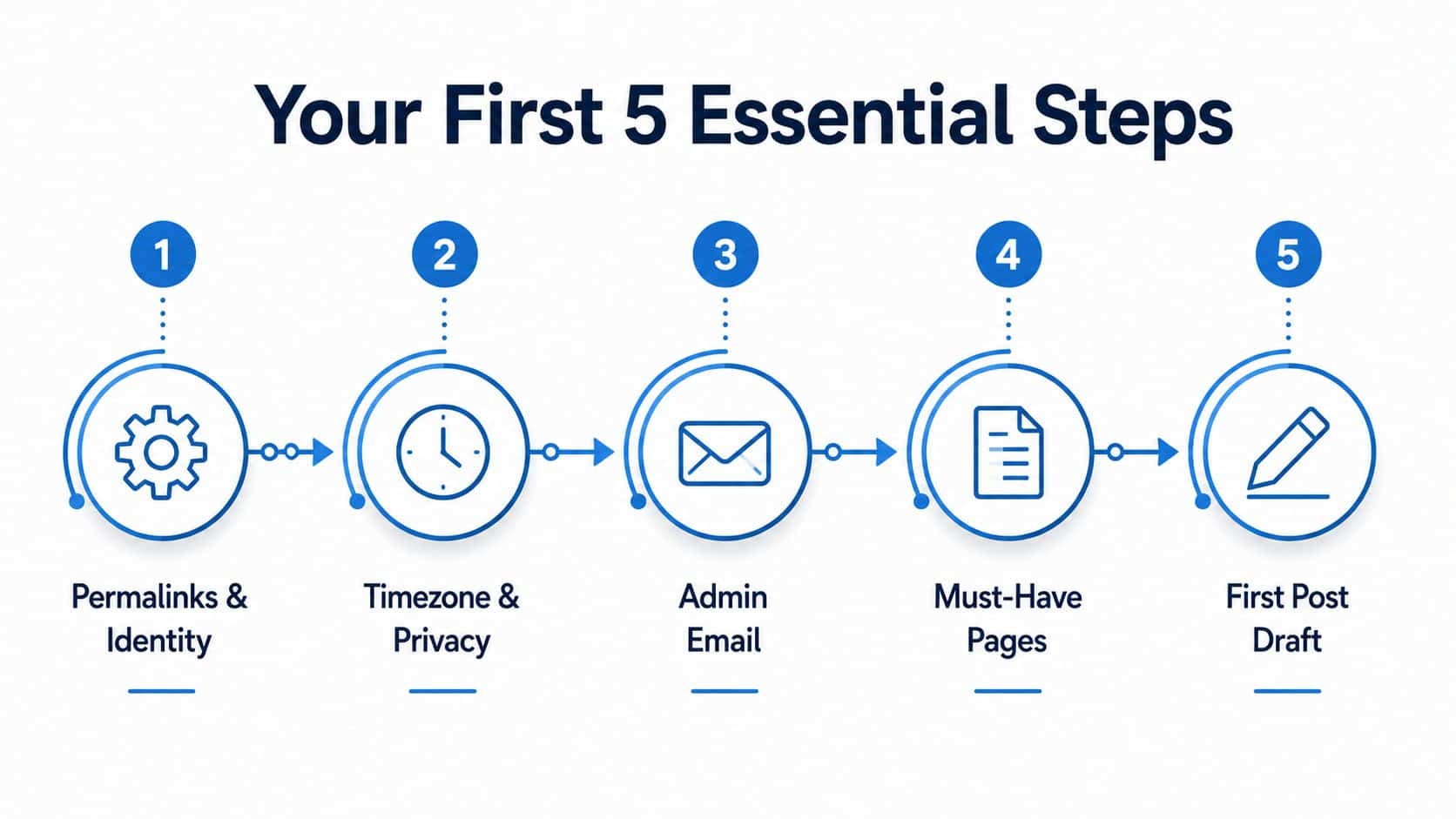
Before you publish anything, clean up the settings that make a blog feel real. Friendly permalinks help URLs look readable, the site identity fields make your branding consistent, and the timezone keeps scheduled publishing sane.
You should also check the admin email, because that address becomes the safety net for password resets and WordPress notices. If it's one you never open, you'll miss messages exactly when you need them.
The pages people forget
Every credible new blog needs a few fixed pages. Home, About, and Contact are the basic trio because they tell visitors who you are, what the site is for, and how to reach you.
It's also smart to add a privacy page if your setup or plugins collect any user information. Beginners often skip this because it feels like legal clutter, but it's part of making the site look finished.
If you care about tracking how posts perform after launch, the agency analytics platform options link is useful background for thinking about reporting from day one instead of treating it as a later upgrade.
Publishing the first post
The workflow is simple, and it should stay simple.
- Open Posts > Add New. Start with the post itself, not the perfect design.
- Write the title and intro. Keep the first lines clear and specific.
- Add the body. Use short sections and plain headings.
- Insert one relevant image. A visual makes the post feel complete.
- Preview, then publish. Read it once on mobile if possible before you click publish.
Good first-post rule: if you can explain the topic to one friend in a calm, direct voice, you're ready to publish.
That first post doesn't need to be brilliant. It just needs to prove the blog works, look credible on day one, and give you a repeatable publishing rhythm.
SEO, Speed, and Security Habits That Pay Off Later
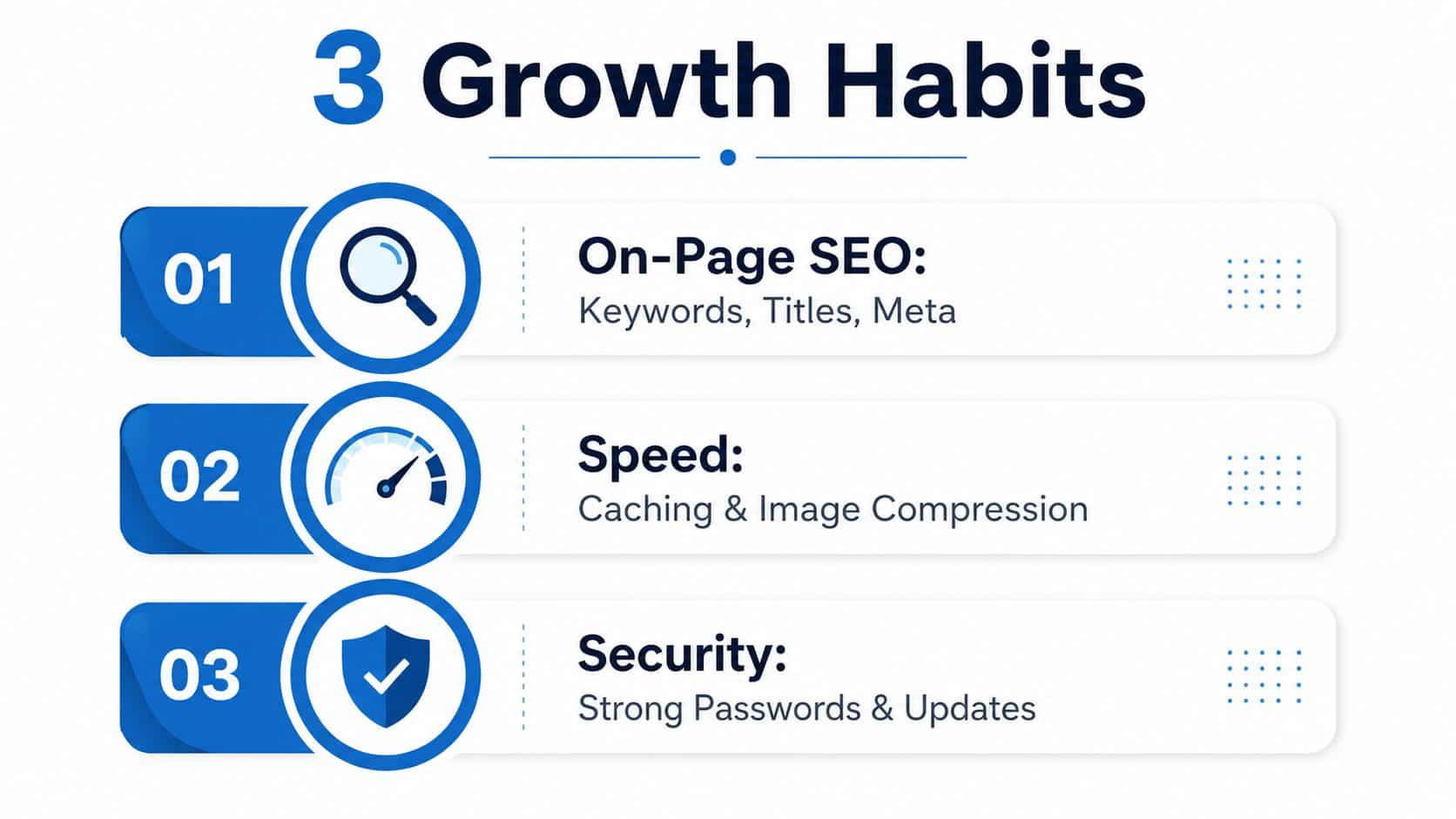
A blog grows when the basics are handled together, not one at a time. SEO, speed, and security are the three habits that keep a WordPress site from stalling after launch.
Start with on-page SEO. Install one SEO plugin, then use it to write a clear title, a useful meta description, and a URL slug that matches the topic. For image optimization, the Wispra WordPress alt text guide is a helpful reminder that alt text should describe the image plainly, because that improves accessibility and gives search engines more context.
What to check when a page feels slow
Slow pages usually come from a few familiar places, oversized images, too many plugins, or an unoptimized theme. If a page feels sluggish, test the image size first, then review what plugins need to stay active.
Security should stay practical. Use strong passwords, turn on two-factor authentication if your setup supports it, and keep the theme and plugins updated. That's enough to avoid a lot of preventable trouble without turning setup into a chore.
The same blog can also act as a lead source if you build for it early. A simple email capture form, a basic lead magnet, or a follow-up workflow can turn anonymous readers into contacts you own. That's where conversion rate optimization basics become relevant, because traffic alone doesn't pay the bills.
A simple launch checklist keeps you honest before you announce the site. Check the blog on mobile, scan for broken links, submit the sitemap if your SEO plugin generates one, and reread the About and Contact pages like a stranger would. Then keep the next 30 days focused on a realistic publishing cadence, one email capture path, and a basic distribution plan across the channels you already use.
If you want the blog to do more than publish posts, build the follow-up system at the same time. HighLevel brings lead capture, follow-up, booking, and messaging into one workspace, which makes it a practical option when a blog needs to support a wider marketing flow instead of sitting there on its own.
